
Review and Publish Questionnaire Responses
Track participation, review submissions, and control where approved responses appear.
Monitor responses as they come in and put them through manual review.
What you will accomplish
By the end of this walkthrough, you will be able to track participation, complete an editorial review, and choose whether approved responses appear in the ballot tool or an external article.
Monitor questionnaire responses
After a questionnaire is distributed, you can track responses through the Questionnaires page, Races Tab, or Candidates tab.
- Get alerted for new responses: You'll automatically receive an email alert when a candidate submits a response. You'll also see a badge icon within the platform when there are newly received responses that your team has not yet reviewed.
- See in-progress candidates: By clicking into the Races page, you can even track candidates who have "opened" their questionnaire but haven't completed it.
Review and publish new responses
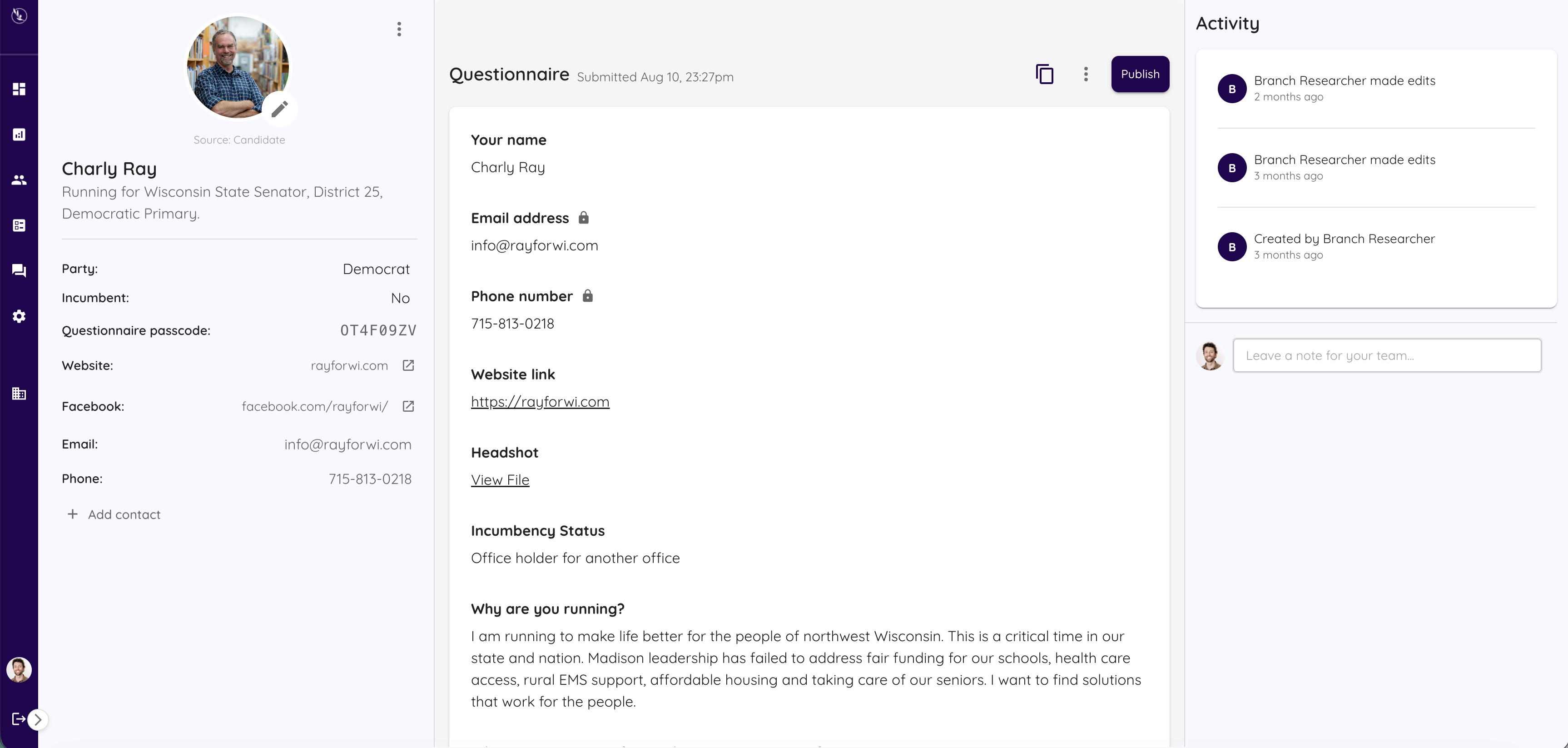
When setting up your questionnaire, if you selected "Newsroom Review", you will need to review and publish responses before they are visible to readers. Here's a rundown of how to do that:
- Open the Candidates tab.
- Click the "Questionnaire" filter. Select "Submitted" to see candidates that have submitted a response but have not been published.
- Click into the candidates' page. You can then see their response. Make any edits using the "Edit Response" button. Then click "Publish".
The original response is protected
Editing a submitted response in the administrative interface does not overwrite the candidate's original submission. The original remains available for reference, giving your team a record of what the candidate sent.
Choose where approved responses appear
Option 1: Publish inside the ballot tool (Most common)
By default, publishing a response allows it to appear in the candidate's Read more experience within the ballot lookup tool. The response appears directly beneath the candidate as a question-and-answer view.
If you do not want this behavior, this can be disabled by going to Customize Display > "Ballot Display" and then turning off "Questionnaire".
Option 2: Publish in an external article or voter guide
If your organization publishes a separate comparison article, you can use VoterGuideOS platform as the collection and review system. Once a response has been published, you can copy the reviewed responses into your publishing workflow and keep the platform status as an internal marker if useful.
You can copy individual candidate responses through the candidate's page. Alternatively, you can copy side-by-side responses for every candidate in a race by going to the race's page and clicking "View Responses".
If a response is not appearing publicly
- It has not been published: Move the reviewed response to Published, or confirm that auto-publish is enabled.
- The questionnaire display is disabled: Check the ballot display settings for candidate details and questionnaire content.