
Create and Assign a Questionnaire
Plan your questionnaire, add questions, and assign it to the correct races.
Choose the right questionnaire strategy, build the questions, and connect the finished questionnaire to the correct races.
What you will accomplish
By the end of this walkthrough, you will have a completed questionnaire assigned to every race that should receive it.
Before you begin
- Confirm the election. Use the election selector in the upper-right corner of the platform and verify that you are working in the intended election.
- Decide which races share questions. Determine whether every race receives a unique questionnaire or whether several races can use the same set of questions.
- Set an editorial policy. Choose a response deadline, word limit, editing policy, and publication workflow before invitations go out.
Step 1: Choose a questionnaire strategy
A questionnaire does not have to map one-to-one with a race. Build the fewest questionnaires that still preserve the editorial specificity your coverage requires. Here are some common strategies:
| Strategy | Use it when | What to watch |
|---|---|---|
| One questionnaire per race | Questions are highly local or tailored to a specific office and district. | Requires more setup and maintenance, but provides the strongest race-specific experience. |
| One questionnaire per office type | Related races can answer shared questions, such as all congressional races. | Review every question for relevance across all assigned races. |
| One questionnaire for many races | You need a consistent baseline across a broad election or geography. | Generic questions scale more easily but may produce less locally-specific answers. |
Step 2: Create the questionnaire
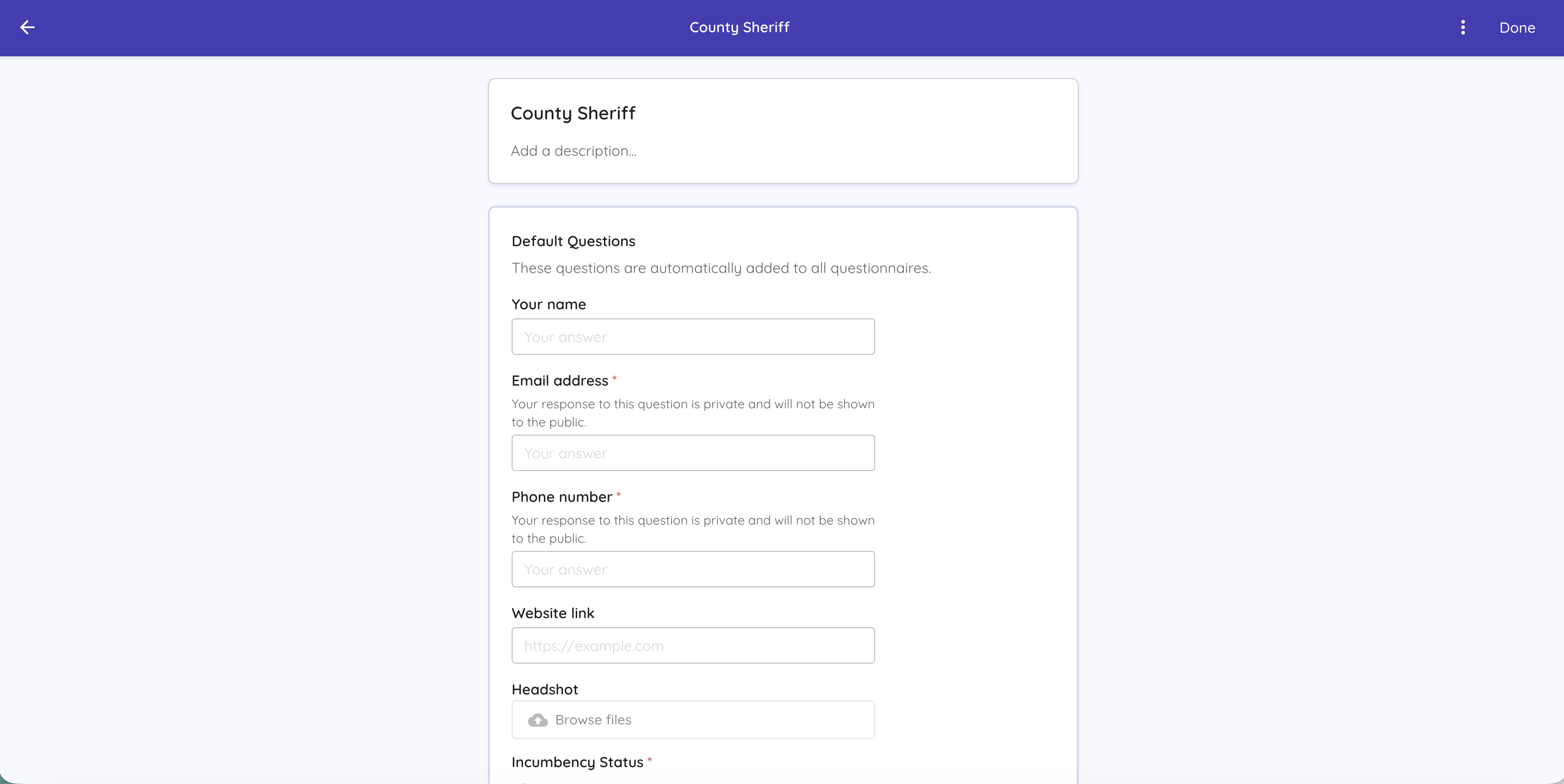
Start a new questionnaire
Open Questionnaires and choose the action to create a questionnaire. Use a clear title that helps your team distinguish it from similar questionnaires, such as City Council — General Election or Congressional Questionnaire.
Default candidate information
Questionnaires include standard biographical and contact fields in addition to the questions you create. These may include email, phone number, website, and an optional headshot. Candidate-provided information can also enrich the candidate record in the platform.
Add your content questions
Add each editorial question and choose the appropriate response type. You can customize each question with more detailed specifications:
- Title: Use this to include the full question text.
- Required: Questions that aren't required may be left blank.
- Description: This is a candidate-facing description of the question that is not visble to readers. Use it to explain the question details, but do not use this for the actual question text.
- Word limit: Apply a word limit when your publication format requires consistent response lengths.
- Public / private: Questions default to public. Public questions are visible to readers. Private questions are only visible to your team internally, and are usually used for things like resumes, date of birth, or other fields you may not want to show readers.
Pro tip
If several questionnaires share a common core of questions, you can use the "Duplicate" questionnaire feature to save time in creating questionnaires.
Step 3: Assign the questionnaire to races
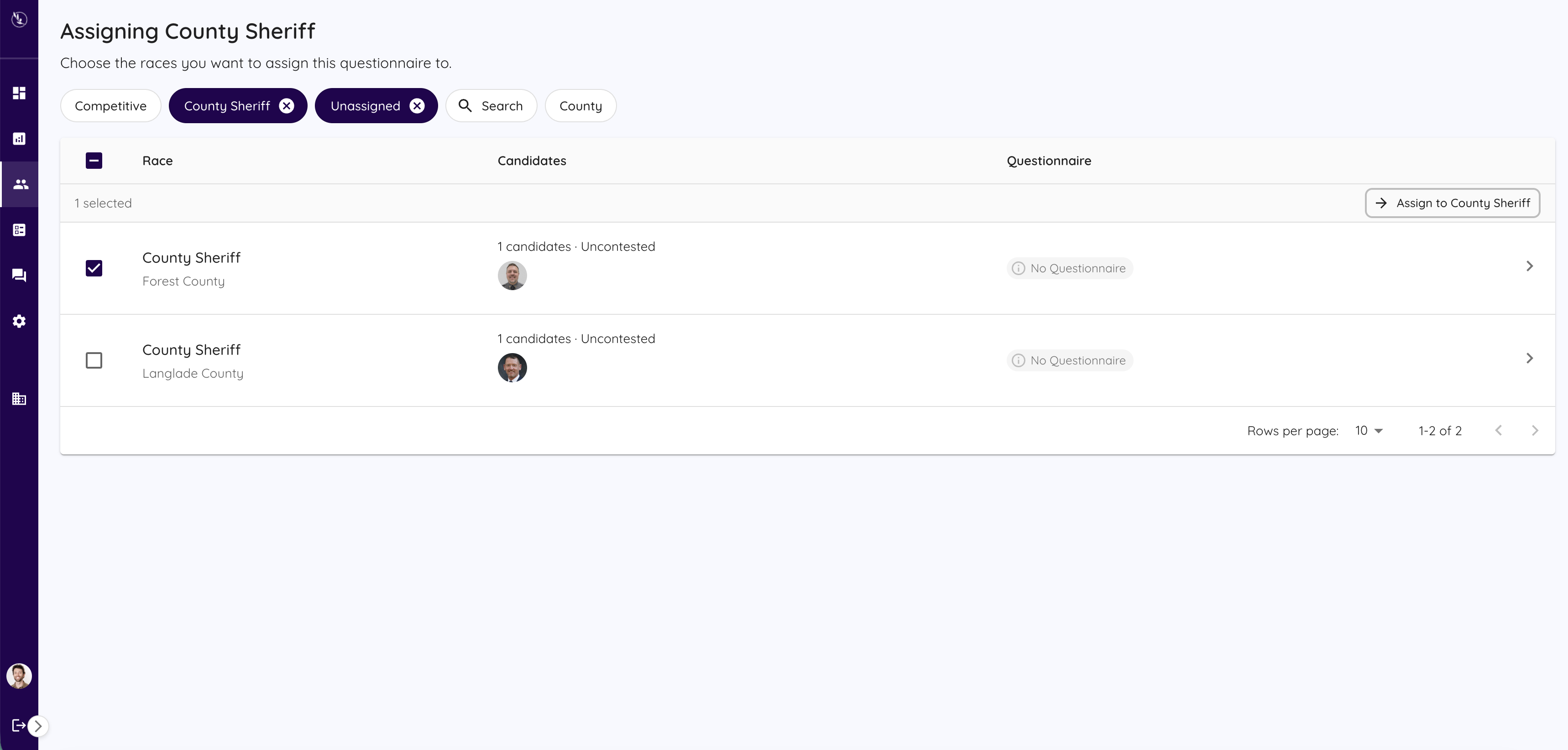
When you finish creating a questionnaire, you'll need to assign it to all relevant races. This helps the platform understand which questionnaires apply to which races.
- Search or filter for the target race or races.
- Select every race that should receive the questionnaire. One questionnaire can be assigned to multiple races.
- Review the selection carefully and click "Assign".
When you finish a questionnaire, the platform automatically takes you to the assignment step. You can also find this step manually by going to the Questionnaires page, clicking the three dots next to the questionnaire, and clicking "Assign to races".